
Goodnotes Planner Guide
Get started with your digital planner
This guide will help you get started with Goodnotes, learn how to use your digital planner and explore its features. Follow the sections below in order, or jump straight to whatever you need.
Get set up
Open your planner and get started with Goodnotes.
Open your planner
Planners from the Goodnotes Marketplace go straight into your library, so there's nothing to download.
- Open Goodnotes and go to Documents.
- Find your planner. New documents usually appear near the top.
- Tap the thumbnail to open it.
Can't see it?
Make sure you're signed in to the account you bought it with. Then open the Marketplace, tap More (…) and choose Purchase History or Restore Purchases.

Editing Mode and Read Only Mode
Goodnotes has two modes, and you'll switch between them all the time.
- Editing Mode shows your writing tools. Use it to write, draw and decorate.
- Read Only Mode hides the tools. Use it to tap around your planner without leaving stray marks.
Tap the Read Only icon (a page with a small eye) in the top bar to switch. Tap it again to switch back.
Editing Mode

Read Only Mode

Choose how your pages turn
There's no right or wrong way, so try both and keep the one that feels natural.
- Horizontal: swipe left and right, one page at a time, like a paper planner.
- Vertical: scroll up and down through your pages in one continuous stream.
To change it, tap More (…) in the top-right corner and choose Scrolling Direction.
Make the page fit
Turn your iPad to match your planner (landscape or portrait) and pinch with two fingers to zoom in on small boxes.

Find your way around
Your planner is fully linked, so any page is only a tap or two away.
Tap the tabs and links
Almost everything in your planner is a hyperlink: the tabs down the side, the dates in your calendars, your index pages and the icons along the top and bottom.
- Tap a tab, date or icon.
- Goodnotes jumps straight to that page.
Getting around
- Side tabs: each month, your yearly calendar and your index.
- Calendars: tap a date to open that day, or a week number to open that week.
- Index pages: your planner's contents. Tap any entry to jump to it.
Tapping draws a line instead?
Switch to Read Only Mode, or touch and hold the hyperlinked area and choose Open Link.
The sidebar, bookmarks and search
Tap the Sidebar icon in the top-left corner to see every page as a thumbnail. Tap one to jump to it.
Bookmark your favourite pages
Tap More (...) to add a page to your favorites. Then, in the Sidebar, choose Bookmarks Only to see just those pages.
Search
Tap the magnifying glass to search your planner. Goodnotes even searches your handwriting.


Write and decorate
The tools you'll use every day to fill in and personalise your pages.
Your writing tools
In Editing Mode, your tools sit along the top of the page. Tap a tool to use it, and tap it again to change its colour and size.
- Pen for writing, in any colour and thickness.
- Highlighter for see-through strokes.
- Eraser for removing whole strokes or just part of one.
- Text for typing anywhere on the page.
Quick undo
Double-tap with two fingers to undo, or three fingers to redo.
All your tools live here

Tap again for options

Move things with the Lasso tool
- Choose the Lasso tool in the toolbar.
- Draw a loop around what you want to move.
- Drag it somewhere new, or drag a corner to resize it.
- Tap the selection for more options, like Copy or Delete.
To paste a copy, touch and hold anywhere on a page and choose Paste.
Draw a loop around it

Add stickers and photos
Stickers
In Goodnotes, stickers are called Elements. Open the Elements tool in the toolbar, then tap or drag a sticker onto your page.
Photos and sticker files
Tap the Images tool, choose a photo or file, then drag it into place and resize it using the corners.
Sticker files linked from your planner can be added the same way.
Move, resize and arrange
Once a sticker or photo is on your page, use the Lasso tool to work with it:
- Choose the Lasso tool in the toolbar and draw a loop around the sticker or photo.
- Drag it to move it somewhere new.
- Drag a corner to make it bigger or smaller.
- Tap the selection for more options, like Cut, Duplicate or Delete.
If a photo won't select, tap the Lasso tool again and check that images are turned on in its options.
Elements tool

Images Tool

Make it your own
Add extra pages and hyperlinks so your planner fits the way you work.
Add and duplicate pages
Duplicate a page
- Open the Sidebar (top-left icon).
- Tap the small arrow under the page you want to copy.
- Choose Duplicate. The copy appears right after the original.
Add a new page
Tap the Add Page icon in the top-right, choose where it goes and pick a template.
Good to know: your planner's links always point to the original pages. Bookmark new pages or add your own link so they're easy to find, and try not to delete original pages, as links to them will stop working.
Drag to reorder

Add your own hyperlinks
- Press and hold anywhere on the page, then tap Add Link.
- Choose Link Settings to edit a link, then Document to link to a page, or Website for a web address.
- Pick the page and tap outside the box to finish. A hyperlink icon appears where you held. Tap it to jump to your page.
There's no need to type anything first. If you'd like a word to be the hyperlink instead, select typed text with the Text tool and tap Link.
To change a hyperlink later, select the Text tool and tap the hyperlink. You can restyle it with the same options as typed text.


Connect your calendar
Some planners have shortcut icons in the corner of every page that can open your calendar and ChatGPT. Google Calendar and Outlook work on any device. Apple Calendar, Reminders and ChatGPT need a quick one-time setup and work on Apple devices only.
Find the calendar icons
Look for the small icons in the top-right corner of your pages. From left to right:
- Outlook opens Outlook Calendar.
- Google opens Google Calendar.
- Apple opens Apple Calendar and Reminders.
- ChatGPT opens a new chat.
Outlook and Google work straight away on any device. Apple and ChatGPT need the Chattan Design shortcut first, which works on Apple devices only.
Before you tap
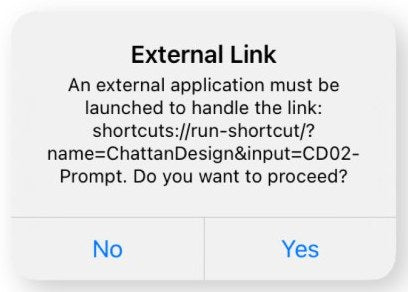
Switch to Read Only Mode so the icons work as links. Each time you tap one, your device asks if you want to open an external link. Tap Yes. This pop-up comes from your device and can't be switched off.
Top-right of your pages

Install the Chattan Design shortcutApple Devices Only
A one-time setup that unlocks the Apple and ChatGPT icons in your planner.
- Download the shortcut using the button below or the link in your planner.
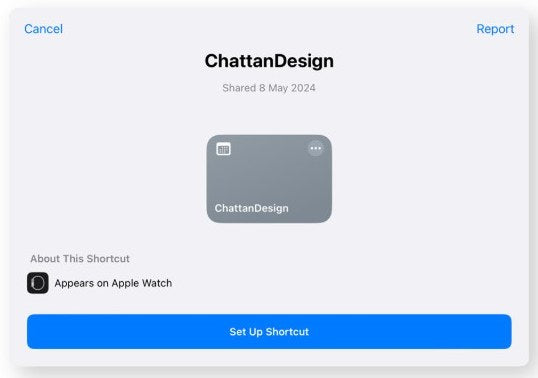
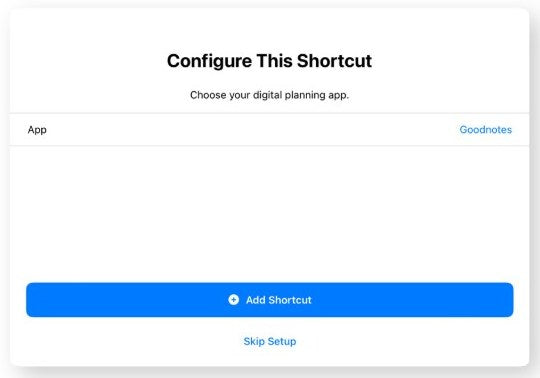
- Open the downloaded file. The Shortcuts app opens. Tap Set up Shortcut.
- When asked for your digital planning app, make sure Goodnotes is selected, then tap Add Shortcut.
- Head back to your planner. The Apple and ChatGPT icons are ready to use.
Important: make sure the shortcut hasn't been renamed, as it will only work with its original name. If you've downloaded it more than once, a number such as (2) may have been added automatically, so double-check the name and remove any extra numbers.
Step 2
Step 3
Apple Calendar and RemindersApple Devices Only
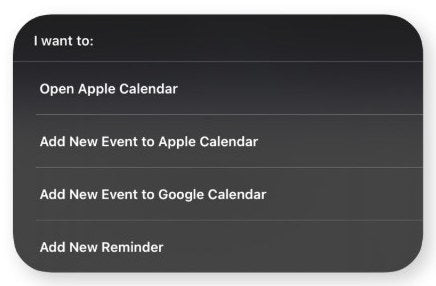
Once the shortcut is installed, tap the Apple icon in the top-right corner of any page, tap Yes to open the link, then choose:
- Open Apple Calendar in a floating window, showing today.
- Add New Event to Apple Calendar or Google Calendar.
- Add New Reminder with a time and a Reminders list.
Hourly calendar links
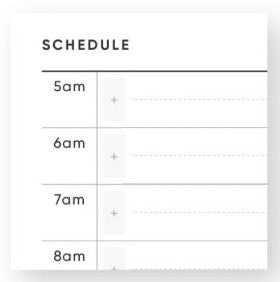
Some planners have a small + beside each hour on the daily and weekly schedule pages. Tap it and a one-hour event is set up for that time, with an alert 30 minutes before. Just add a title.
Close the calendar
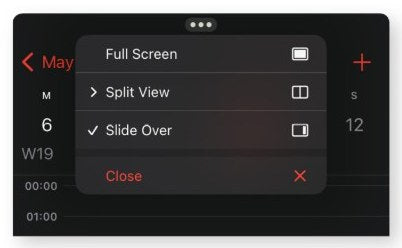
To close the floating calendar window, tap the three dots at the top of it and choose Close.
Close the calendar
Tap the Apple icon
Hourly calendar links
Close the calendar
ChatGPTApple Devices Only
Make sure the ChatGPT app is installed and you're signed in to your account. You'll also need the Chattan Design shortcut.
- Tap the ChatGPT icon in the top-right corner of any page.
- When asked if you want to open the link, tap Yes.
- A new chat opens, ready for quick answers, fresh ideas or help planning a project.
To close a floating window, tap the three dots at the top of it and choose Close.
Install the app

Tap Yes
Google Calendar
The Google icon opens Google Calendar straight from your planner, so you can check your schedule, book meetings and keep on top of deadlines without losing your place. It works on any device, with no shortcut needed.
- Make sure the Google Calendar app is installed and you're signed in to your account.
- Tap the Google icon in the top-right corner of any page.
- When asked if you want to open an external link, tap Yes.
That's it. Tap the icon from any page whenever you need your calendar.
Install the app
Outlook Calendar
The Outlook icon opens your Outlook Calendar straight from your planner, so you can check your schedule, book meetings and keep on top of deadlines without losing your place. It works on any device, with no shortcut needed.
- Make sure the Microsoft Outlook app is installed and you're signed in to your account.
- Tap the Outlook icon in the top-right corner of any page.
- When asked if you want to open an external link, tap Yes.
That's it. Tap the icon from any page whenever you need your calendar.
Install the app
Keep it safe
Back up your planning and pick up where you left off on any device.
Back up your planner
Goodnotes can back up your whole library automatically.
- In your library, tap the Goodnotes menu in the top-right.
- Choose Cloud & Backup, then Automatic Backup.
- Pick a service (Google Drive, Dropbox or OneDrive) and sign in.
Always make a Manual Backup too (in the same menu) before updating or resetting your iPad.
Backup status
Use it on iPhone and Mac
Turn on iCloud sync in Goodnotes and sign in to the same Apple Account on each device. Your planner and everything you've written in it appear on all of them.
- iPhone: check your plans and jot quick notes on the go.
- Mac: click links with your trackpad and type with your keyboard.
Still stuck?
Answers to common questions, and how to reach us.
Frequently asked questions
Most questions about Goodnotes and our planners are answered on our FAQ page, from links that won't open to finding a lost planner.
Get in touch
If something isn't working, or you have a question this guide doesn't answer, send us a message. Let us know which planner you're using and add a screenshot if you can.
Nothing matches that search. Try a different word, or get in touch and we’ll help.